
MQTT Configuration
DataForeman supports MQTT for bidirectional data flow: ingest messages from brokers into tags and publish tag values back to MQTT topics. An internal broker is included for local device connectivity without requiring an external MQTT server.
Overview
The MQTT stack provides:
- Broker connections (internal and external brokers)
- Topic subscriptions with payload parsing
- Field mapping and tag creation from incoming JSON
- Publisher pipelines with interval and on-change modes
- Credential groups and auto-registered MQTT devices
Architecture
MQTT in DataForeman is split across three services:
-
Core API
- Manages MQTT configuration and security endpoints
- Proxies broker status, clients, and topic tree
- Persists connections, subscriptions, mappings, publishers, and devices
-
Connectivity service
- Runs MQTT client drivers for each configured connection
- Subscribes to topics, parses payloads, and emits telemetry
- Executes publisher jobs and reconnect logic
-
Embedded broker
- Internal broker included for local device connectivity
- Handles authentication webhooks and connection event tracking
MQTT UI Workflow
Navigate to Connectivity and open the MQTT section. The UI is organized into tabs:
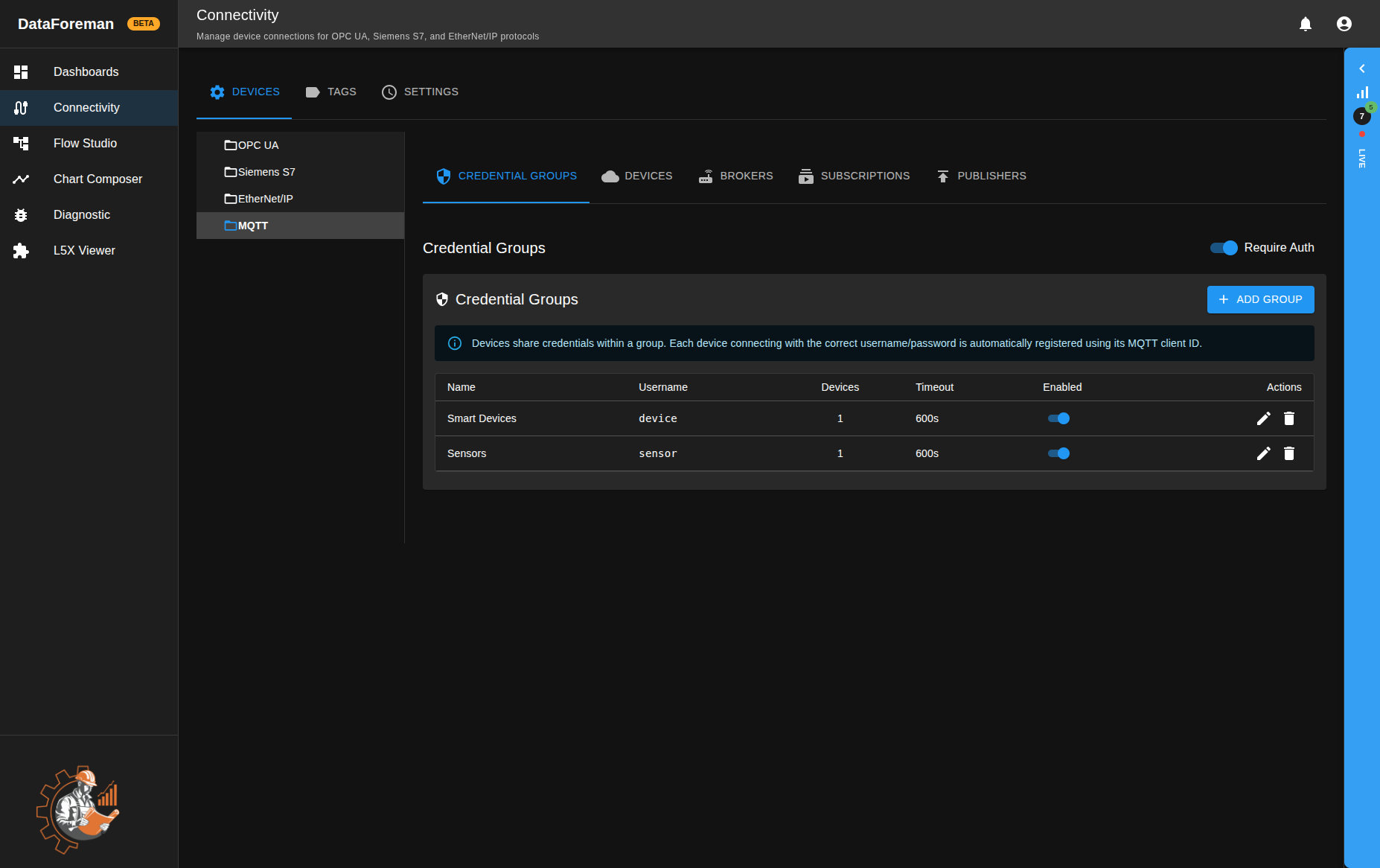
- Credential Groups
- Devices
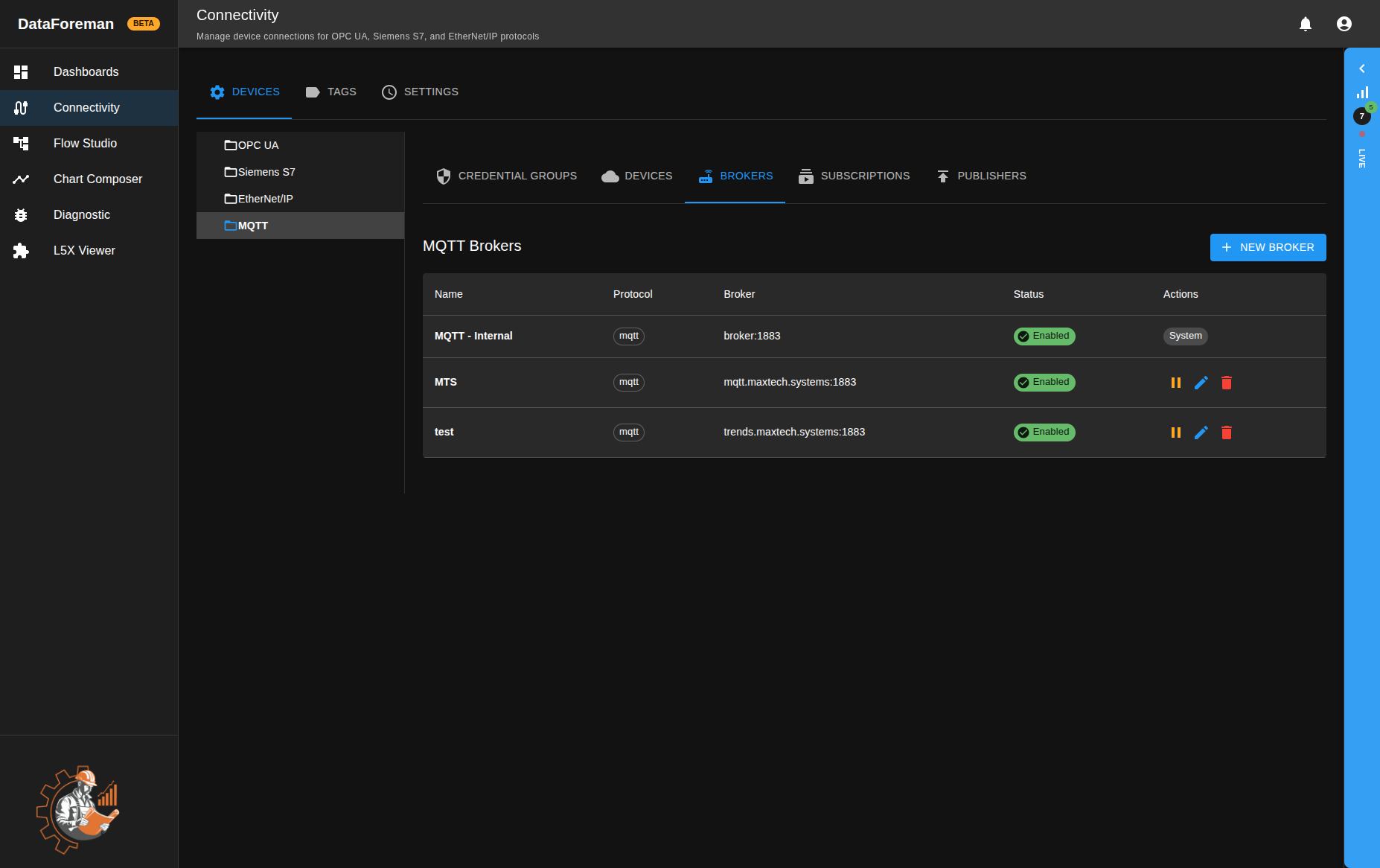
- Brokers
- Subscriptions
- Publishers
Recommended setup order:
- Configure broker authentication mode in Credential Groups
- Add broker connections in Brokers (optional — only needed if you want to connect to a remote broker or prefer not to use DataForeman’s internal broker)
- Create Subscriptions to ingest data
- Create field mappings and tags for incoming payloads
- Configure Publishers for outbound MQTT
Broker Connections
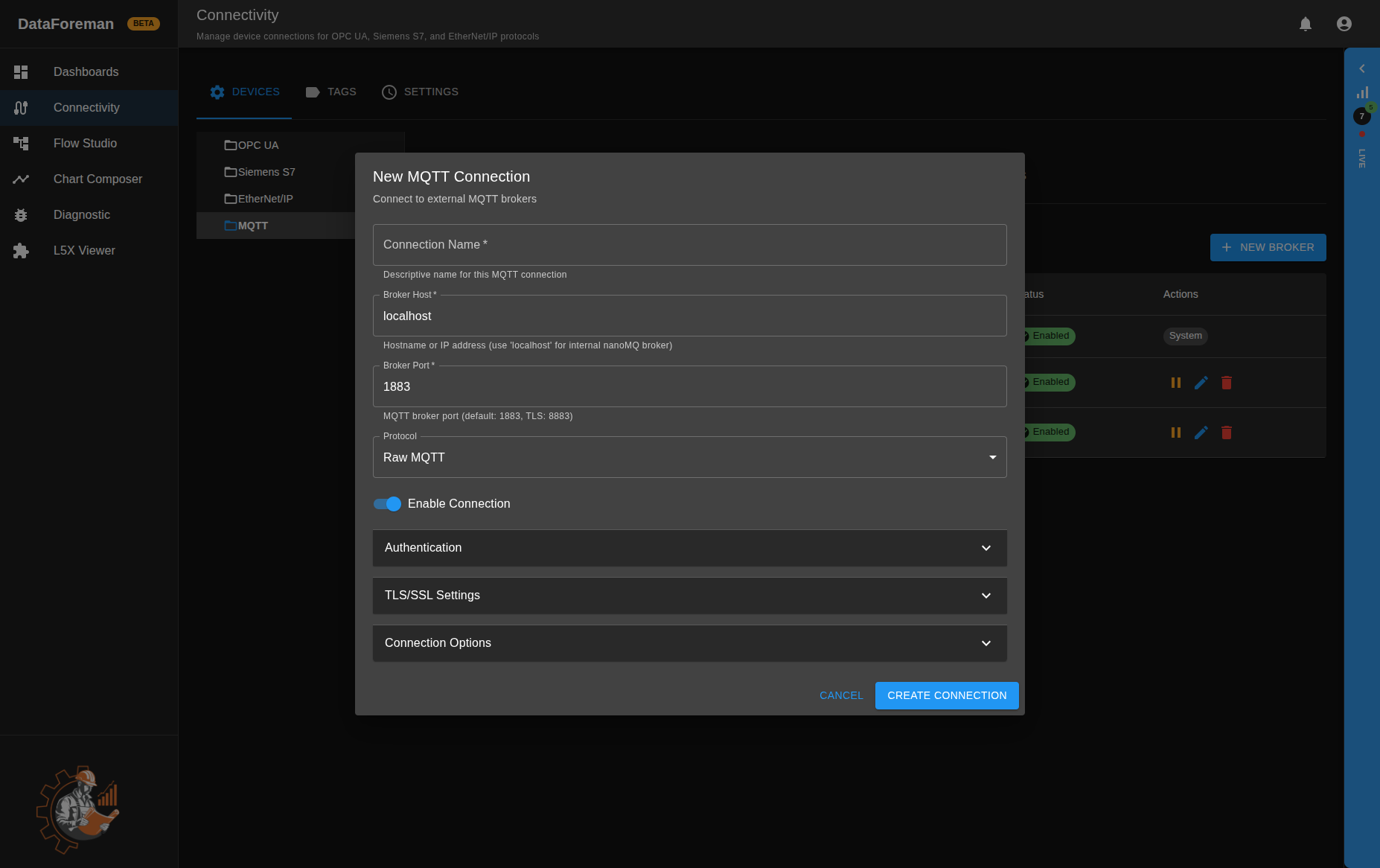
Required Information
| Field | Description | Typical Value |
|---|---|---|
| Name | Friendly identifier | Main Plant Broker |
| Broker Host | Hostname, IP, or URL | 192.168.1.100, broker.example.com |
| Broker Port | MQTT port | 1883 (plain), 8883 (TLS) |
| Protocol | Connection type | mqtt |
| Client ID Prefix | Prefix for generated client IDs | dataforeman |
Connection Behavior
- Internal broker: already available as MQTT - Internal — no configuration needed
- External broker: use the device’s hostname or IP address
- TLS is supported for mqtts and wss transports
- Reconnect period and timeout are configurable per connection
- System connection MQTT - Internal is bootstrap-managed and not user-deletable from standard workflow
Advanced Broker Host Formats
The MQTT driver accepts:
- Plain host: broker.example.com
- Full URL: mqtt://broker.example.com:1883
- Secure URL: mqtts://broker.example.com:8883
- WebSocket URL: wss://broker.example.com:8084/mqtt
Authentication Model
MQTT auth can run in two modes:
- Anonymous mode: any client can connect
- Require Auth mode: credentials required for each device/client
When Require Auth is enabled, DataForeman restarts the broker so existing clients must re-authenticate.
Credential Groups
Credential Groups define shared username/password credentials for fleets of devices. Device clients are auto-registered on successful login and tracked by client ID.
Group configuration includes:
- Name
- Username
- Password
- Enabled/disabled state
- Device timeout threshold
Device Registry
Read-only — The Device Registry is for monitoring only. No user actions can be performed here; device records are managed automatically by the system.
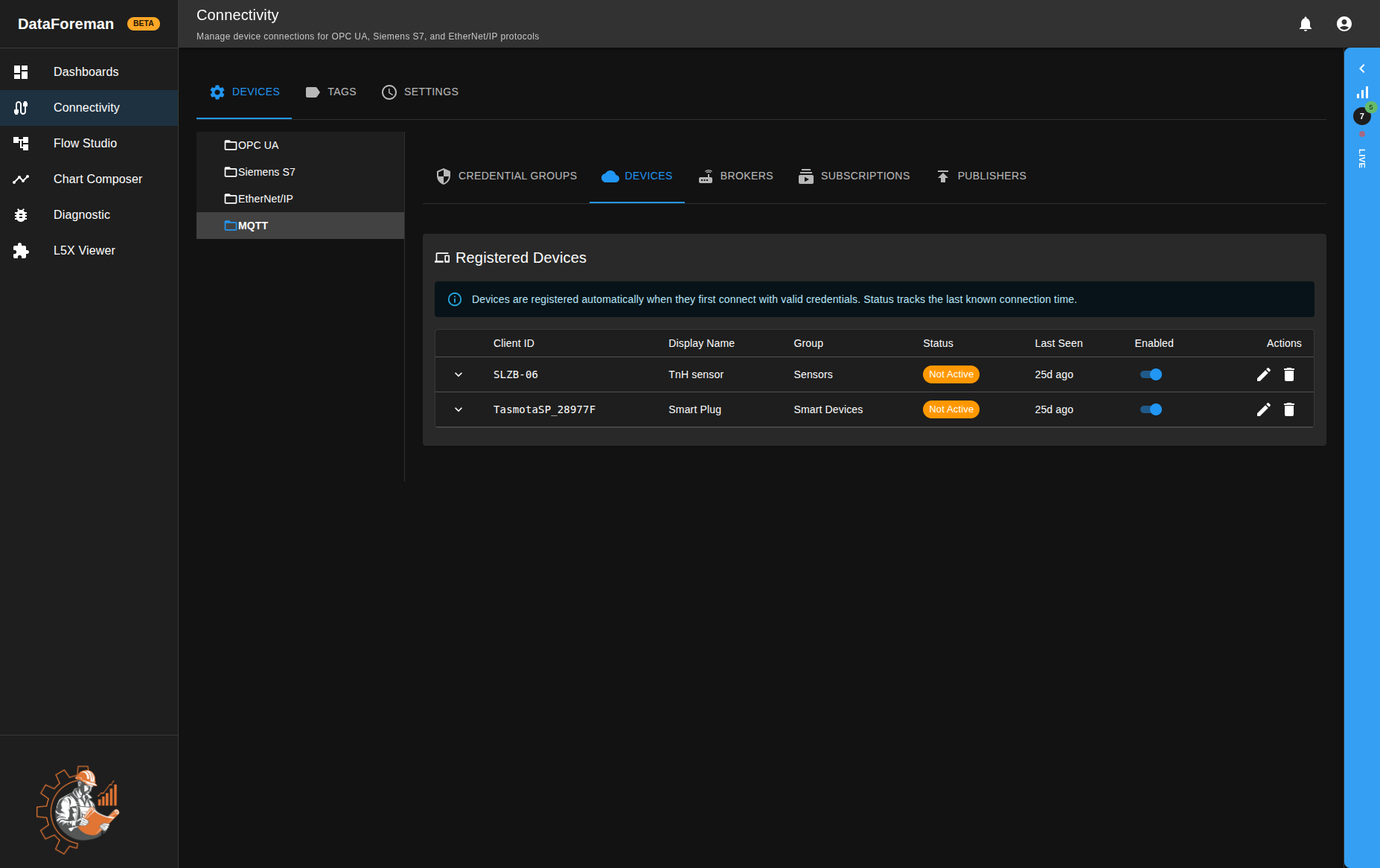
Devices are discovered automatically from successful MQTT auth and webhook events. Device records include:
- Client ID and optional display name
- Linked credential group
- Last seen timestamp
- Status (connected, not active, disabled, auth failed)
- Recently seen topics
Subscriptions (Ingest MQTT Data)
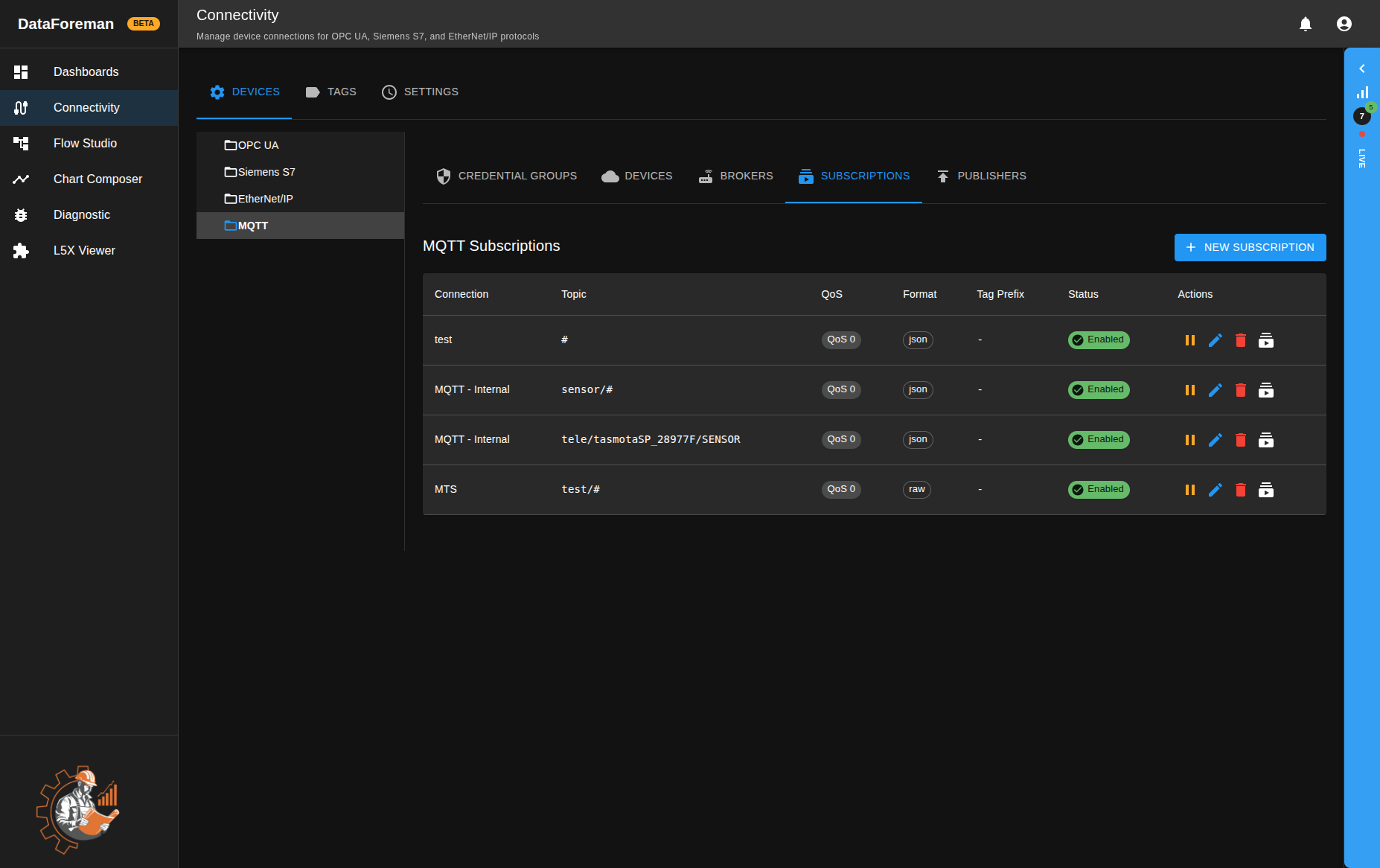
Subscriptions bind a connection to a topic filter and payload parser.
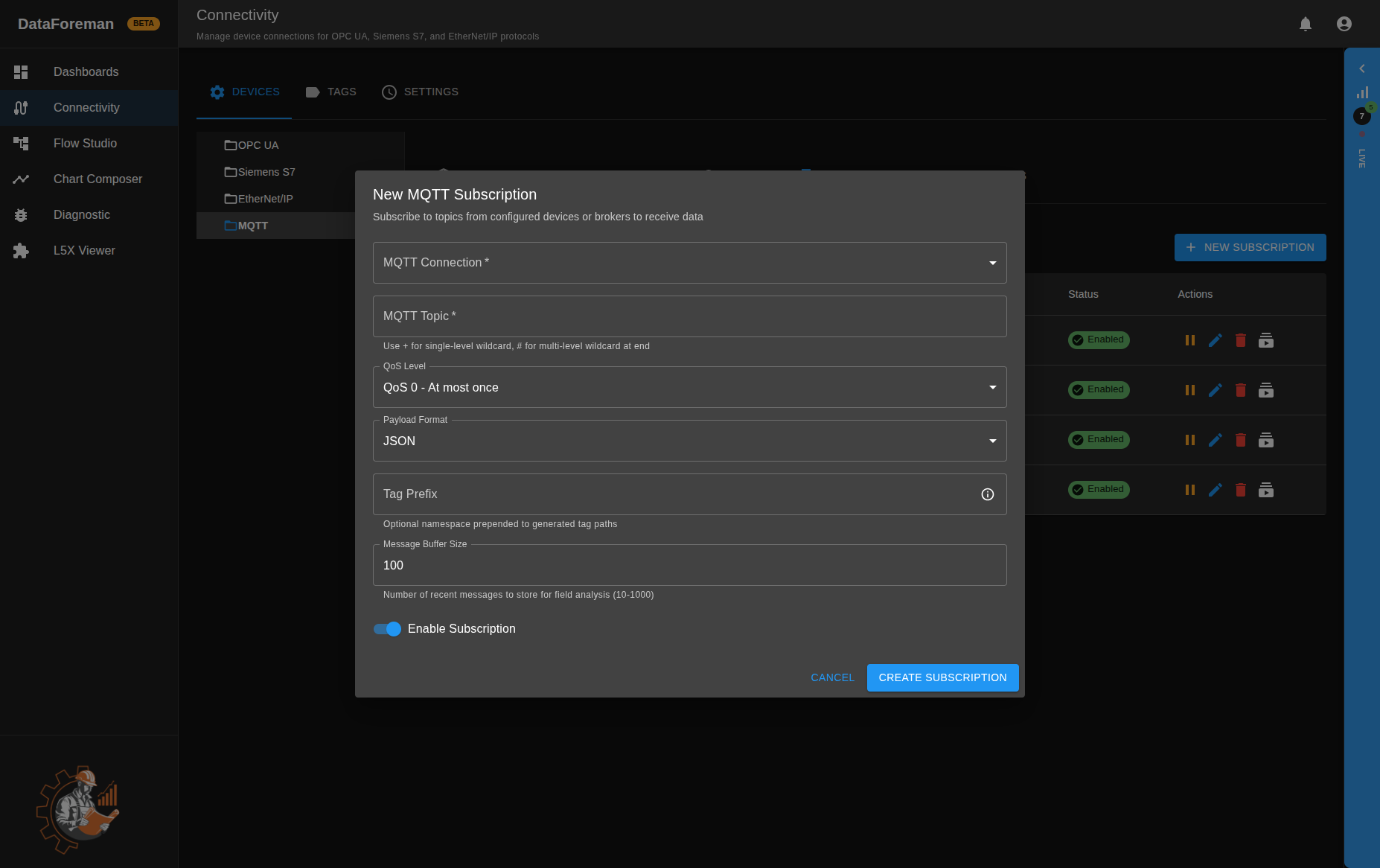
Subscription Fields
| Field | Description |
|---|---|
| Topic | MQTT topic or wildcard filter |
| QoS | 0, 1, or 2 |
| Payload Format | json or raw |
| Tag Prefix | Namespace prefix for generated tag paths |
| Message Buffer Size | Number of recent messages kept for analysis |
Topic wildcard usage:
| Wildcard | Scope | Example | Matches |
|---|---|---|---|
+ |
Single level | plant/+/temperature |
plant/line1/temperature, plant/line2/temperature |
# |
Remaining levels | plant/line1/# |
plant/line1/temperature, plant/line1/motor/rpm |
+ + # |
Combined | plant/+/sensors/# |
plant/line1/sensors/temp, plant/line2/sensors/pressure/raw |
Payload Formats
- json: parses JSON payloads and enables field mapping workflow
- raw: consumes text/binary payloads directly
Recent Messages Panel
Each subscription includes a recent messages view with:
- Auto-refresh
- Expandable message payload rows
- Buffer clear action
This buffer is also used by field analysis for mapping assistance.
Field Mapping and Tag Creation
Field mapping is where MQTT data becomes a usable tag in DataForeman. Once a tag is created from a mapping, its values are stored in the time-series database and are immediately available for use in Charts and Flows — just like any other tag in the system.
How It Works
DataForeman analyzes the buffered messages from a subscription and detects available topic + field path combinations. You select which fields to map, assign each a tag name and data type, then click Create Tags from Mappings. A tag record is created for each mapping and linked to the subscription so that all future incoming values write directly to tag telemetry.
Mappings can also be added manually or imported in bulk via CSV.
Data Types
Each tag has a declared storage type. Choose the type that matches the actual value:
| Type | Description |
|---|---|
real |
Floating-point number (default for numeric fields) |
int |
Integer |
text |
String / free-form text |
bool |
Boolean (true/false) |
json |
Full JSON object or array |
Type is set at mapping time, but can be changed later by editing the mapping. Changing the type on a mapping also updates the tag metadata — new values will be stored under the new type. Historical data already written is not retroactively converted.
Type Coercion
The ingestor coerces incoming values to the declared type automatically. Many MQTT devices send numbers as quoted strings (e.g. "23.5") — the ingestor detects this and stores the value as a number rather than text, provided the tag type is real or int.
Important: If a tag is saved with type
text, numeric-string coercion is suppressed —"23.5"will be stored as the string23.5, not as a number. Text-type tags will not plot on charts, and will not work as numeric inputs in flow math nodes. The chart UI will explicitly warn you when a text-type tag is added to a chart. If you realize a tag was mapped with the wrong type, edit the mapping to correct it — but note that already-stored values are not retroactively converted.
Failure Policy
If a value arrives but cannot be converted to the declared type, the failure policy determines what happens:
- skip (default) — the message is silently dropped for that tag
- default — stores a configured default value instead
Field Mapping Options
| Field | Description |
|---|---|
| Topic | Exact topic or pattern the field comes from |
| Field Path | Dot-notation path into the JSON payload (e.g. sensors.temp) |
| Tag Name | Name for the resulting tag |
| Data Type | Storage type (real, int, text, bool, json) |
| Type Strictness | coerce (auto-convert) or strict (reject mismatches) |
| On Failure | skip or default |
| Default Value | Value to store when on_failure is default |
Publishers (Outbound MQTT)
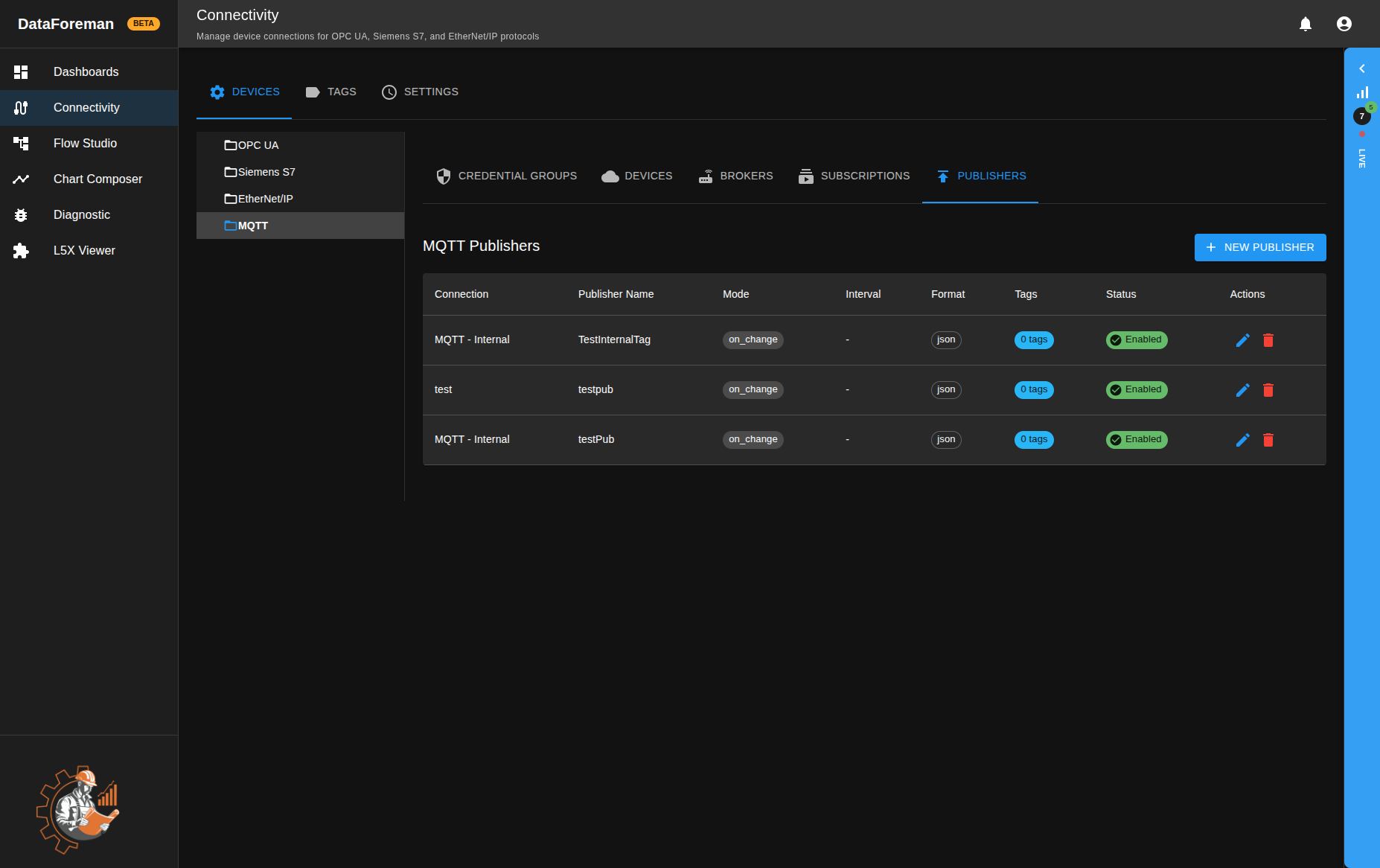
Publishers send DataForeman tag values to MQTT topics. Each publisher targets a specific broker connection — this can be the built-in MQTT - Internal broker or any external broker configured in the Brokers section.
Publish Modes
| Mode | Behavior |
|---|---|
| on_change | Publish when mapped value changes |
| interval | Publish on fixed schedule |
| both | Publish on change and on interval |
Publisher Template Tokens
Publisher templates are edited in display format and stored in ID-safe format.
- Display format in UI: {{ConnectionName|TagName}}
- Stored format in DB: {{tag_id:1234}}
The Validate step resolves display tokens to tag IDs to keep publishers stable across tag renames.
Routing Behavior
- Internal broker publishers are handled directly by the embedded broker
- External broker publishers are routed through the connectivity service
API Endpoints Summary
Main MQTT API groups:
- Connection CRUD: /api/mqtt/connections
- Subscription CRUD and message tools: /api/mqtt/subscriptions
- Field mappings and tag creation: /api/mqtt/field-mappings
- Publisher CRUD and token resolve: /api/mqtt/publishers
- Credential groups and devices: /api/mqtt/device-credentials, /api/mqtt/devices
- Broker monitor and control: /api/mqtt/status, /api/mqtt/clients, /api/mqtt/topics
Security and Permissions
MQTT routes use permission checks by action:
- mqtt:read
- mqtt:create
- mqtt:update
- mqtt:delete
Broker webhook endpoints for auth and telemetry callbacks are internal endpoints without JWT, intended for broker-to-core communication on the trusted network.
Troubleshooting
Broker Connection Fails
- Verify broker host, port, and TLS mode
- Confirm DNS/network reachability from connectivity service
- Check connection timeout and reconnect period values
- Review connectivity logs and core MQTT status endpoint
Subscriptions Receive No Data
- Confirm subscription is enabled
- Verify topic filter matches published topics
- Check client presence in MQTT clients list
- Validate payload format selection (json or raw)
Publishers Not Sending
- Ensure publisher and source tags are active
- Validate template token resolution before save
- Check publish mode and interval configuration
- Confirm external broker connection health when routing via NATS
Device Status Is Stale
- Verify device timeout settings in credential groups
- Check webhook event flow from broker to core
- Confirm client IDs are stable across reconnects
Best Practices
- Use internal broker for local high-throughput flows
- Separate topic namespaces per area or line for cleaner mapping
- Start with QoS 0 and increase only for required reliability
- Keep subscription topic filters specific before widening wildcard use
- Use on_change publish mode where possible to reduce traffic
- Periodically review inactive devices and unused subscriptions