
Tag Management
Tags are the core data points in DataForeman that represent values collected from industrial devices. This guide covers browsing, saving, configuring, and managing tags across different protocols.
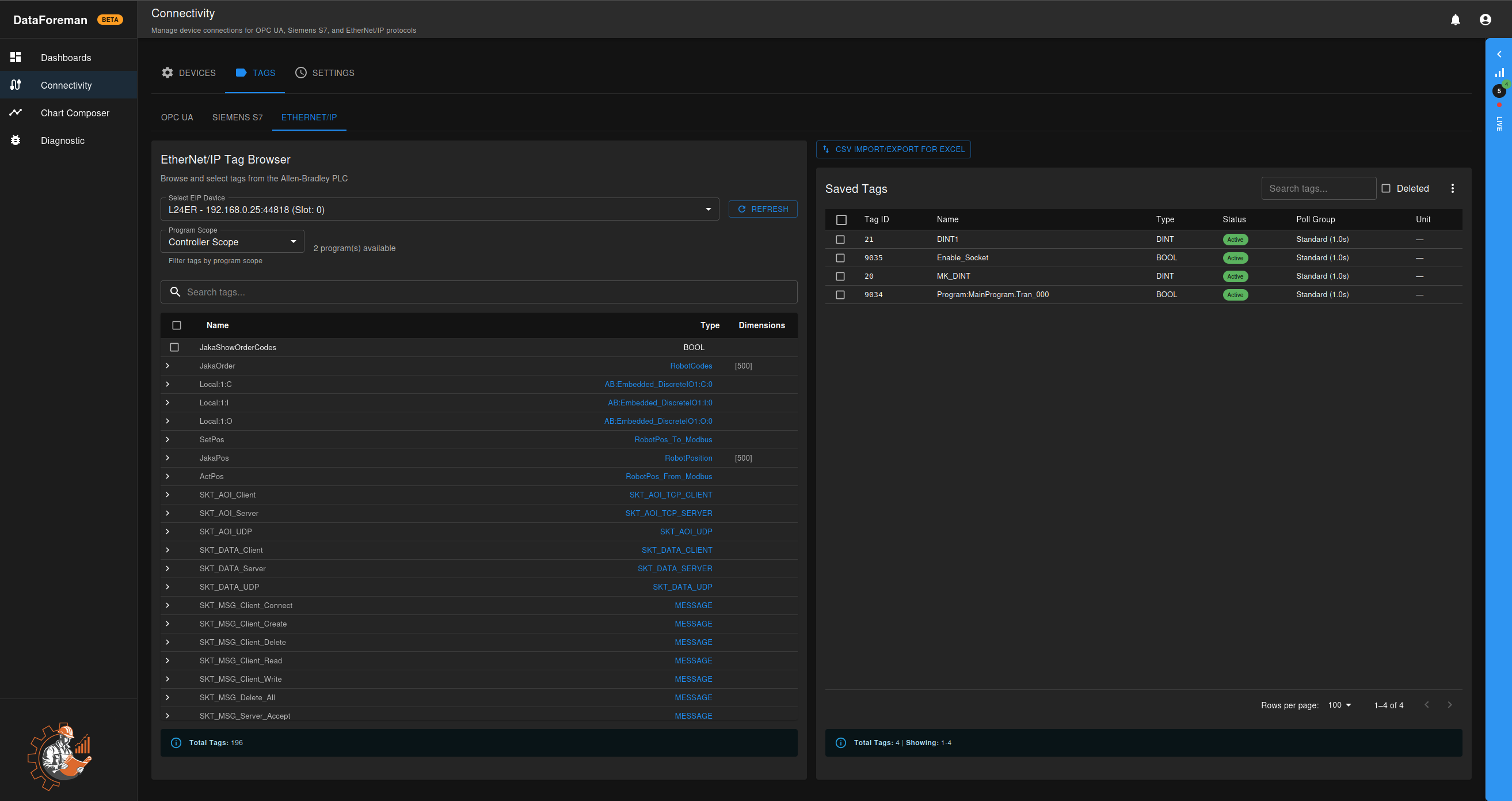
Overview
Tag management in DataForeman allows you to:
- Browse device tag structures through protocol-specific browsers
- Select and save tags for continuous monitoring
- Configure polling rates and change detection
- Organize tags with metadata, units, and descriptions
- Import/Export tag configurations for backup and bulk editing
Accessing Tag Management
- Navigate to Connectivity from the main menu
- Click the TAGS tab
- Select your protocol (OPC UA, Siemens S7, or EtherNet/IP)
- Choose your connection from the dropdown
Protocol-Specific Tag Browsers
OPC UA Tag Browser
The OPC UA tag browser allows hierarchical navigation through the server’s address space:
Features:
- Tree-based node navigation with breadcrumb trail
- Folder and variable node icons
- Real-time browsing of OPC UA server structure
- Automatic data type detection
- Multi-select tag saving
Workflow:
- Select your OPC UA connection
- Ensure connection is started (enabled) on the Devices tab
- Browse the node tree by clicking on folders
- Select variables (data points) using checkboxes
- Choose a poll group for the selected tags
- Click Save Selected Tags to add them to monitoring
Troubleshooting:
- If browsing fails, verify the connection is started on the Devices tab
- Check that the OPC UA server is reachable
- Review security settings if authentication issues occur
Siemens S7 Tag Entry
For Siemens S7 PLCs, tags are entered manually using PLC addressing:
Supported Address Formats:
- Data blocks:
DB1.DBX0.0,DB1.DBW2,DB1.DBD4 - Inputs:
I0.0,IW2,ID4 - Outputs:
Q0.0,QW2,QD4 - Markers:
M0.0,MW2,MD4
Data Types:
- Bit values (X): Boolean
- Byte/Word/DWord (B/W/D): Integer types
- Real (R): Floating point
EtherNet/IP Tag Browser
EtherNet/IP provides multiple discovery methods:
Discovery Options:
- Auto-discover tags from controller
- Enter tag names manually
- Import from CSV for bulk configuration
Tag Path Format:
- Controller tags:
TagName - Structure members:
StructTag.Member - Array elements:
ArrayTag[0]
Saved Tags List
The saved tags table displays all configured tags for monitoring:
Columns:
- Tag ID: Unique identifier
- Name: Tag display name
- Type: Data type (Int32, Double, Boolean, etc.)
- Status: Active, Inactive, or Deleting
- Poll Group: Assigned polling rate
- Unit: Engineering unit (optional)
Actions:
- Search: Filter tags by name or ID
- Select multiple: Bulk operations (delete, change poll group)
- View deleted: Toggle to show recently deleted tags
- Import/Export: CSV operations for Excel editing
Poll Groups (Sampling Rates)
Poll groups define how frequently tags are read from devices. Each tag must be assigned to a poll group.
Available Poll Groups
| Group ID | Name | Rate | Use Case |
|---|---|---|---|
| 1 | Ultra Fast | 50ms | Critical real-time control |
| 2 | Very Fast | 100ms | High-speed monitoring |
| 3 | Fast | 250ms | Fast process control |
| 4 | Normal | 500ms | Standard monitoring |
| 5 | Standard | 1000ms | Default polling (1 second) |
| 6 | Slow | 2000ms | Slow changing values |
| 7 | Very Slow | 5000ms | Infrequent updates |
| 8 | Diagnostic | 10000ms | Equipment diagnostics |
| 9 | Hourly | 60000ms | Hourly statistics |
| 10 | Custom | 30000ms | Custom/flexible rate |
Best Practices:
- Use faster rates (1-4) only for critical tags
- Default to Standard (5) for most applications
- Slower rates reduce network traffic and database load
- Group similar update frequencies together
Changing Poll Groups
For new tags:
- Select poll group before saving tags
For existing tags:
- Select tags in the Saved Tags list
- Click the poll group dropdown above the table
- Choose new poll group
- Click Update to apply
Write-on-Change Configuration
Write-on-change prevents saving unchanged values to the database, reducing storage and improving performance.
Configuration Options
On Change Enabled: Enable/disable change detection for tag
- Default: Enabled for numeric tags
- Recommended: Keep enabled unless you need every reading
Deadband Value: Minimum change required to save
- Absolute mode: Value must change by at least this amount
- Example: Deadband of 1.0 means value must change by ±1.0
- Percent mode: Value must change by this percentage
- Example: 5% means value must change by ±5% of current value
Heartbeat: Maximum time between writes (milliseconds)
- Default: 60000ms (1 minute)
- Forces a write even if value hasn’t changed enough
- Ensures data isn’t lost during periods of small changes
Example Configurations:
| Scenario | Deadband | Type | Heartbeat |
|---|---|---|---|
| Temperature (±0.5°C) | 0.5 | Absolute | 60000ms |
| Pressure (±2%) | 2.0 | Percent | 30000ms |
| Boolean values | 0.0 | Absolute | 5000ms |
| High precision | 0.01 | Absolute | 10000ms |
Tag Metadata
Each tag can have additional metadata for organization and context:
Available Fields:
- Name: Display name (auto-filled from device)
- Description: Custom notes about the tag
- Data Type: Automatically detected from device
- Unit of Measure: Engineering unit (°C, PSI, RPM, etc.)
- Custom metadata: JSON field for additional properties
Editing Metadata:
- Click on a tag row in the Saved Tags list
- Edit fields in the detail panel
- Click Save to update
Units of Measure
Assign engineering units to tags for proper display in charts and dashboards.
Common Units:
- Temperature: °C, °F, K
- Pressure: PSI, bar, Pa, kPa
- Flow: L/min, GPM, m³/h
- Speed: RPM, m/s, km/h
- Power: W, kW, HP
Adding Units:
- Navigate to Settings → Units
- Click Add Unit
- Enter symbol and description
- Assign to tags as needed
CSV Import/Export
Bulk manage tags using Excel or other spreadsheet applications.
Exporting Tags
- Click CSV Import/Export button
- Click Export CSV
- Open in Excel to edit
Export includes:
- Tag ID, Name, Path
- Data Type
- Poll Group
- Unit
- On-change configuration
- Description and metadata
Importing Tags
- Edit your CSV file in Excel
- Keep Tag ID column to update existing tags
- Remove Tag ID to create new tags
- Click Import CSV and select file
- Review preview before confirming
Import Rules:
- Existing tags (with Tag ID) will be updated
- New rows (no Tag ID) create new tags
- Invalid data types are rejected
- Duplicate tag paths are skipped
Required Columns:
tag_path: Device address (OPC UA NodeId, S7 address, etc.)tag_name: Display namedata_type: Valid data type for protocol
Optional Columns:
poll_group_id: 1-10unit: Unit symboldescription: Custom noteson_change_enabled: true/falseon_change_deadband: Numeric valueon_change_deadband_type: absolute/percenton_change_heartbeat_ms: Milliseconds
Deleting Tags
Single Tag Deletion:
- Select tag in Saved Tags list
- Click delete icon (trash can)
- Confirm deletion
Bulk Deletion:
- Select multiple tags using checkboxes
- Click Delete Selected
- Confirm batch deletion
Deletion Process:
- Tags are marked as “deleting” status
- Background job removes historical data
- Tag is fully removed after data purge completes
- Large datasets may take time to delete
Note: Deleted tags can be viewed temporarily by toggling “Show Deleted” filter.
Tag Status
Tags can have different statuses indicating their operational state:
- Active: Tag is being polled and data is collected
- Inactive: Tag is saved but not currently monitored
- Pending Delete: Marked for deletion
- Deleting: Background deletion in progress
- Deleted: Fully removed from system
Best Practices
- Organize by Function: Use naming conventions to group related tags
- Appropriate Poll Rates: Don’t over-poll slow-changing values
- Enable Change Detection: Reduce database growth with deadbands
- Document Tags: Add descriptions for critical or complex tags
- Use Units: Always assign engineering units for clarity
- Regular Backups: Export tag configurations periodically
- Test Before Production: Verify tag addressing in test environment
Troubleshooting
Tags Not Updating
- Check connection status on Devices tab
- Verify tag path/address is correct
- Ensure poll group is active
- Review device connectivity logs
Browse Fails for OPC UA
- Start the connection on Devices tab
- Check OPC UA server is reachable
- Verify security mode and credentials
- Review error messages in diagnostic logs
Import Fails
- Verify CSV format matches export structure
- Check for invalid data types
- Ensure tag paths are valid for protocol
- Review import error messages
High Database Growth
- Enable write-on-change for numeric tags
- Increase deadband values
- Use slower poll groups where appropriate
- Implement data retention policies
Related Topics
- Device Setup - Connecting to devices
- OPC UA Configuration - OPC UA specifics
- Chart Composer - Using tags in charts
- API Reference - Tag management API endpoints
For additional assistance, visit our troubleshooting guide or report an issue.