
User Management
Control who can access DataForeman and manage user accounts through the web interface.
Accessing User Management
- Login as administrator
- Click the user icon in the top-right corner
- Select Users from the dropdown menu
Default Admin Account
First Login:
- Email:
admin@example.com - Password: Set in
.envfile asADMIN_PASSWORD(default:password) - ⚠️ Change the default password immediately in production!
Creating Users
- Navigate to Users page (user icon → Users)
- In the left panel, enter new user’s email address
- Click Create button
- User account is created with default password
- Set initial password for the user
- Configure permissions as needed
Notes:
- Only email address is required to create user
- Users receive access once password is set
- Initial permissions are minimal - must be configured
Managing User Details
User List
Left panel shows all users:
- Email addresses
- Active/inactive status
- Click any user to view details
User Details Panel
Select a user to view/edit:
- Email address
- Account status
- Password management
- Session information
Password Management
Setting User Passwords
- Select user from list
- In User Details section, enter new password
- Click Update Password button
- All active sessions are automatically revoked
- User must login with new password
Password Security:
- Passwords are hashed using bcrypt
- Stored securely in PostgreSQL
- Session revocation prevents unauthorized access
Password Best Practices
- Use strong, unique passwords
- Minimum 8 characters recommended
- Include letters, numbers, and symbols
- Change default admin password immediately
- Reset passwords when user leaves organization
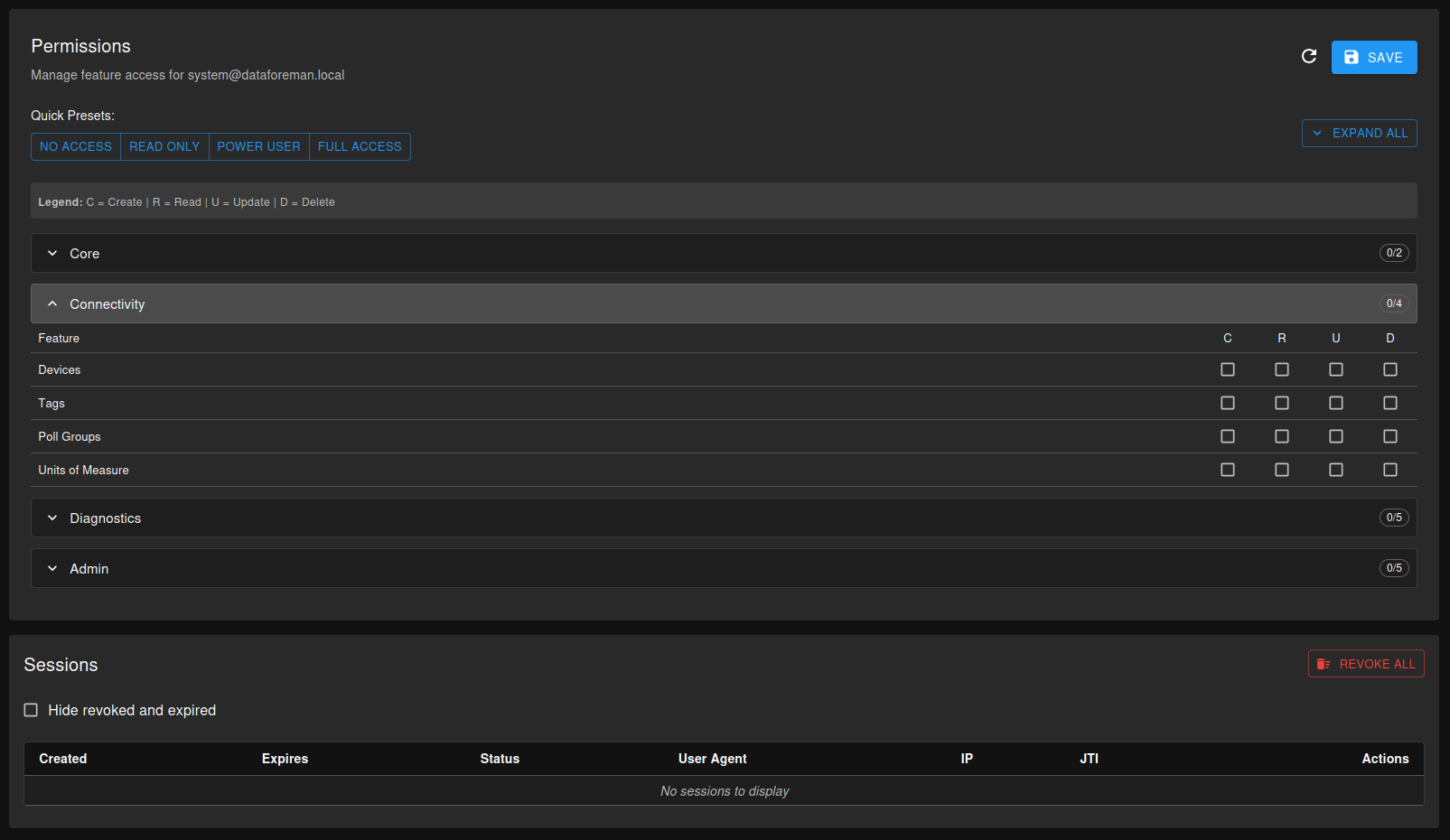
User Permissions
Configure what each user can access:
- Select user from list
- Scroll to Permissions section
- Choose Quick Preset or configure manually:
- No Access: Removes all permissions
- Read Only: View-only access
- Power User: Read + Update permissions
- Full Access: All CRUD permissions
- Click Save to apply changes
- User must logout/login to see permission changes
Permission Categories:
- Core: Dashboards, Chart Composer
- Connectivity: Devices, Tags, Poll Groups, Units
- Diagnostics: System, Capacity, Logs, Network
- Admin: User Management, Permissions, Jobs, Configuration
For detailed permission information, see Permission System.
Session Management
Active Sessions
View all active sessions for a user:
- Select user from list
- Scroll to Sessions section
- See list of active logins with:
- Session creation time
- Last activity time
- IP address (if available)
Revoking Sessions
Single Session:
- Find session in Sessions panel
- Click Revoke button
- Confirm action
- User is immediately logged out
All Sessions:
- Click Revoke All Sessions button
- Confirm action
- All active sessions terminated
- User must login again
Automatic Revocation:
- Password changes revoke all sessions
- Prevents unauthorized access with old credentials
- User notified to login with new password
Authentication
DataForeman uses JWT (JSON Web Tokens):
- Tokens expire after 24 hours
- Automatic refresh when token expires (up to 14 days)
- Secure storage in browser
- HTTPS encryption in production (via Caddy)
Security Best Practices
- Change default admin password before production use
- Use strong passwords for all accounts
- Review user list regularly - remove inactive users
- Monitor sessions - check for suspicious activity
- Revoke sessions when users leave organization
- Limit admin accounts to essential personnel only
- Enable HTTPS in production (automatic with Caddy)
Troubleshooting
Cannot access Users page:
- Verify you’re logged in as admin
- Check user permissions include admin features
- Contact system administrator
Cannot login:
- Verify email and password are correct
- Check account is not inactive
- Try password reset (via admin)
User doesn’t see permission changes:
- User must logout and login again
- Changes take effect on next login
- Clear browser cache if issues persist
Sessions not appearing:
- Refresh the page
- Check network connectivity
- Verify user is currently logged in
Related Documentation
- Permission System - Detailed permission configuration
- System Monitoring - Diagnostic tools and health checks